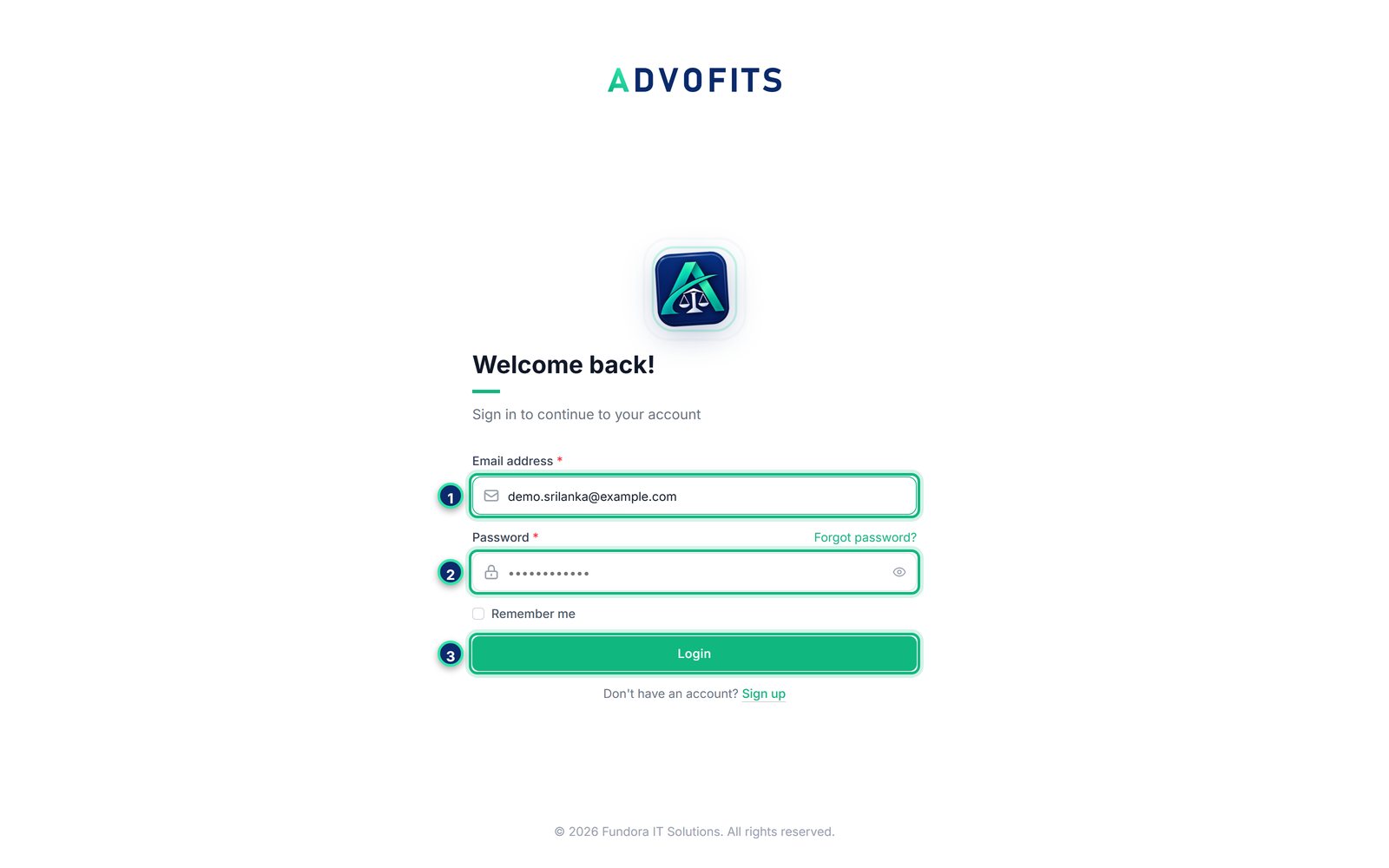
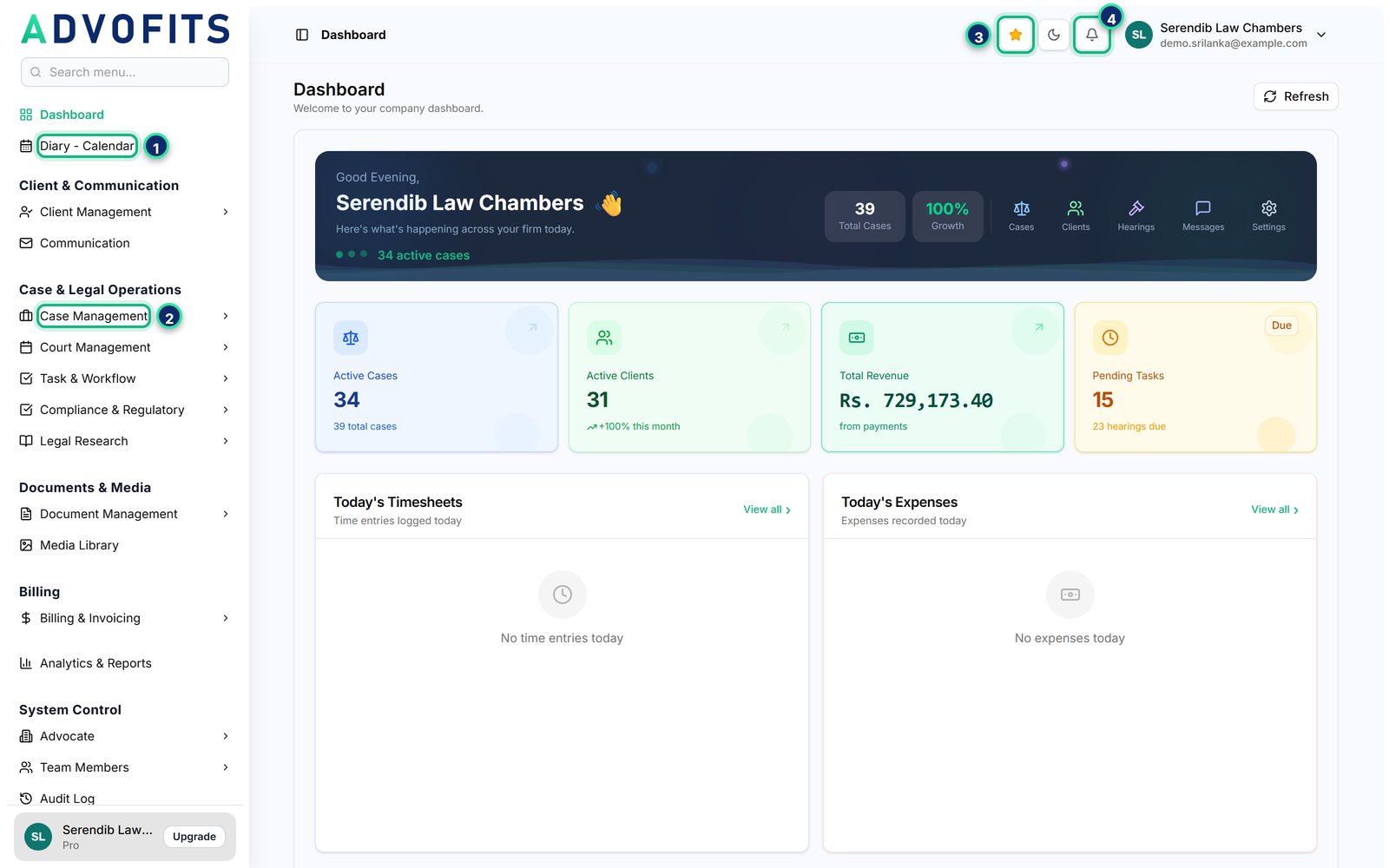
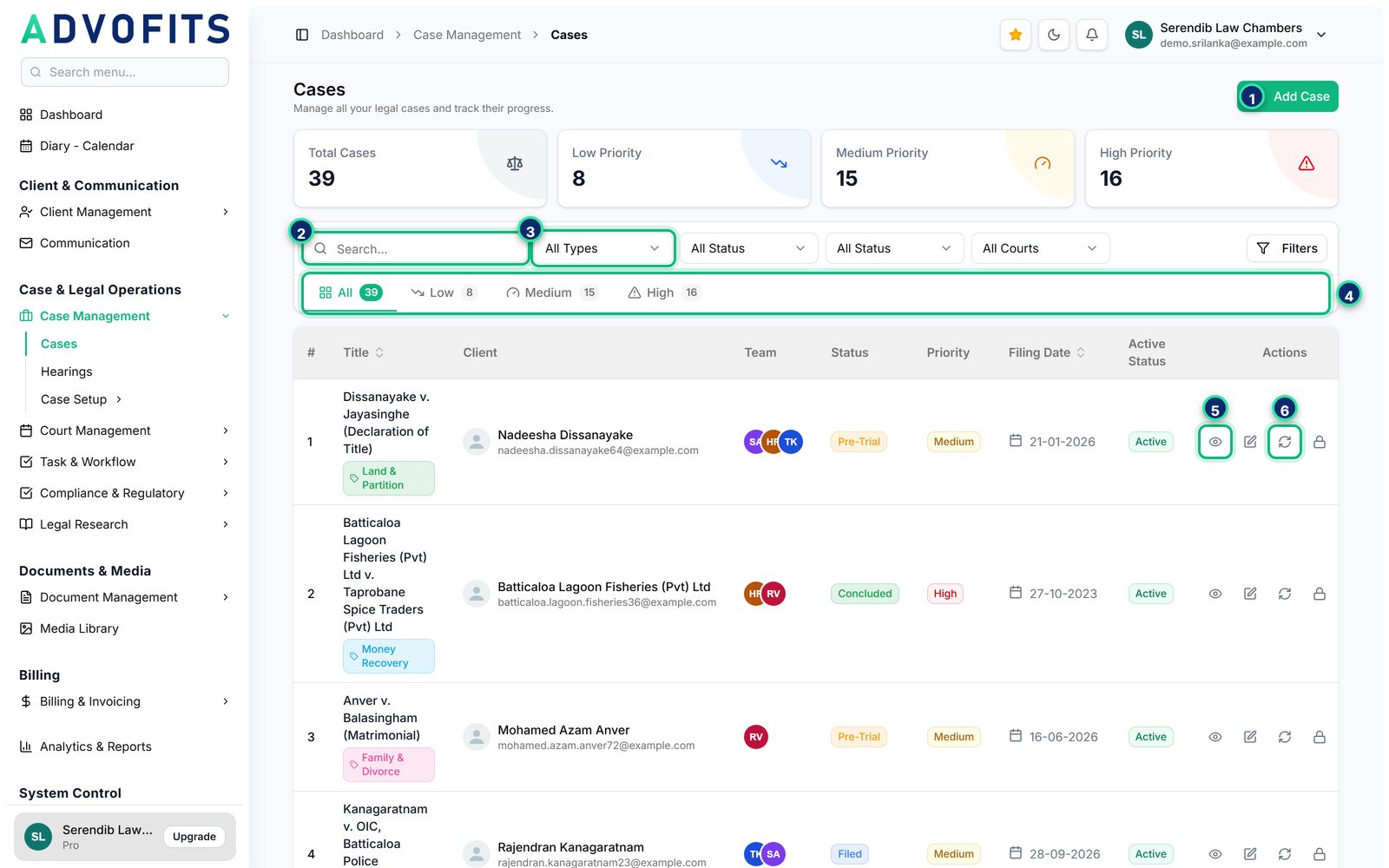
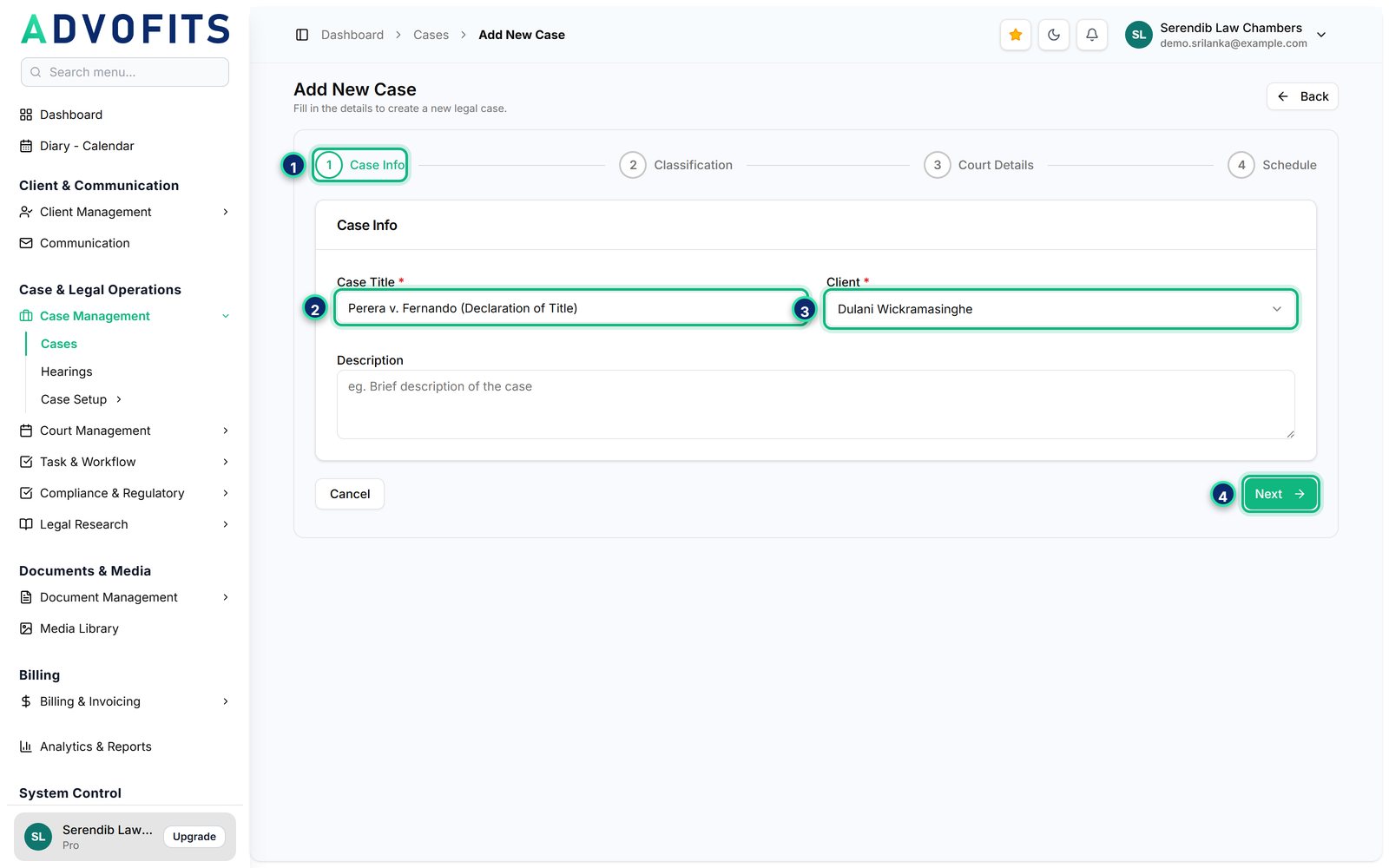
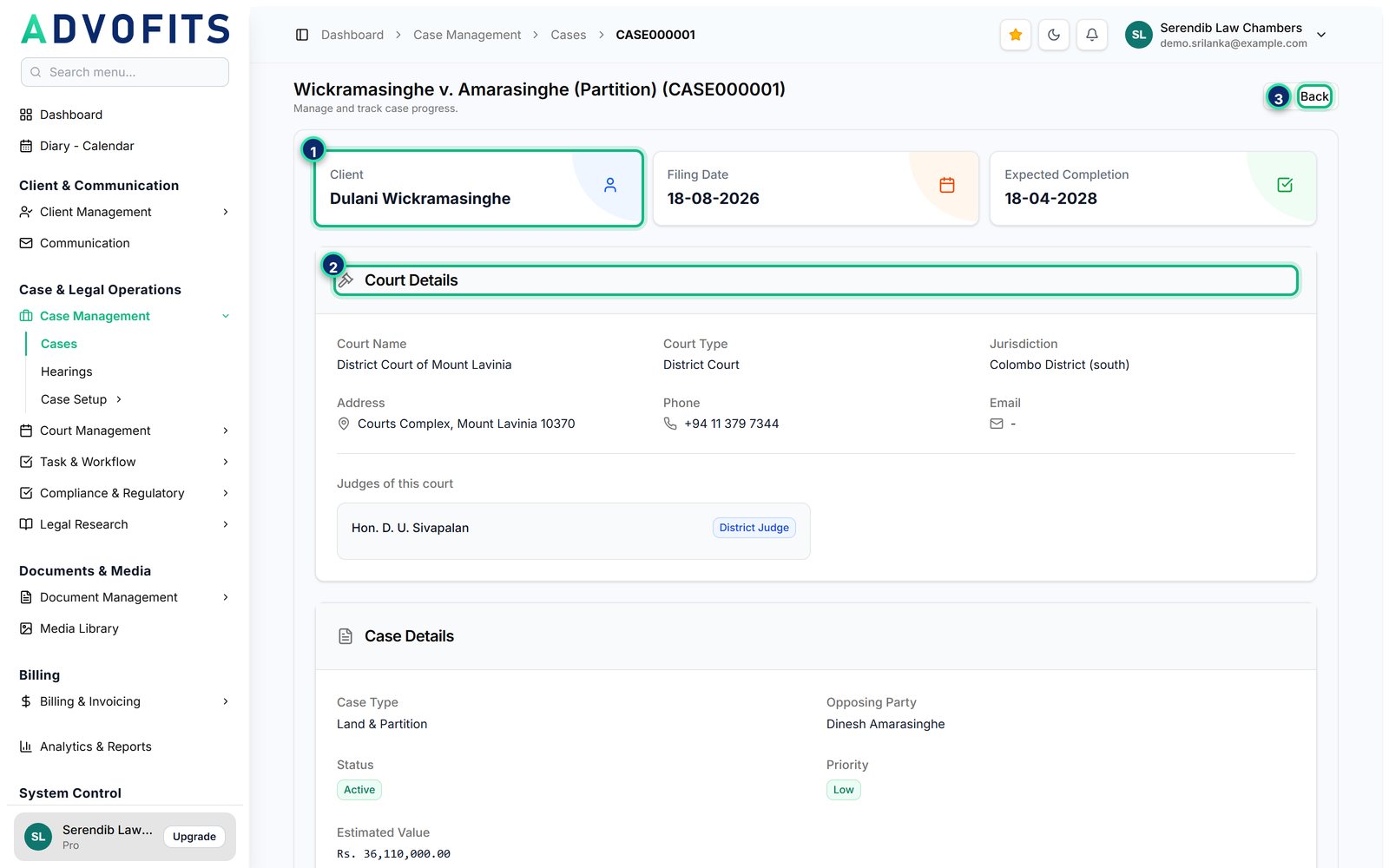
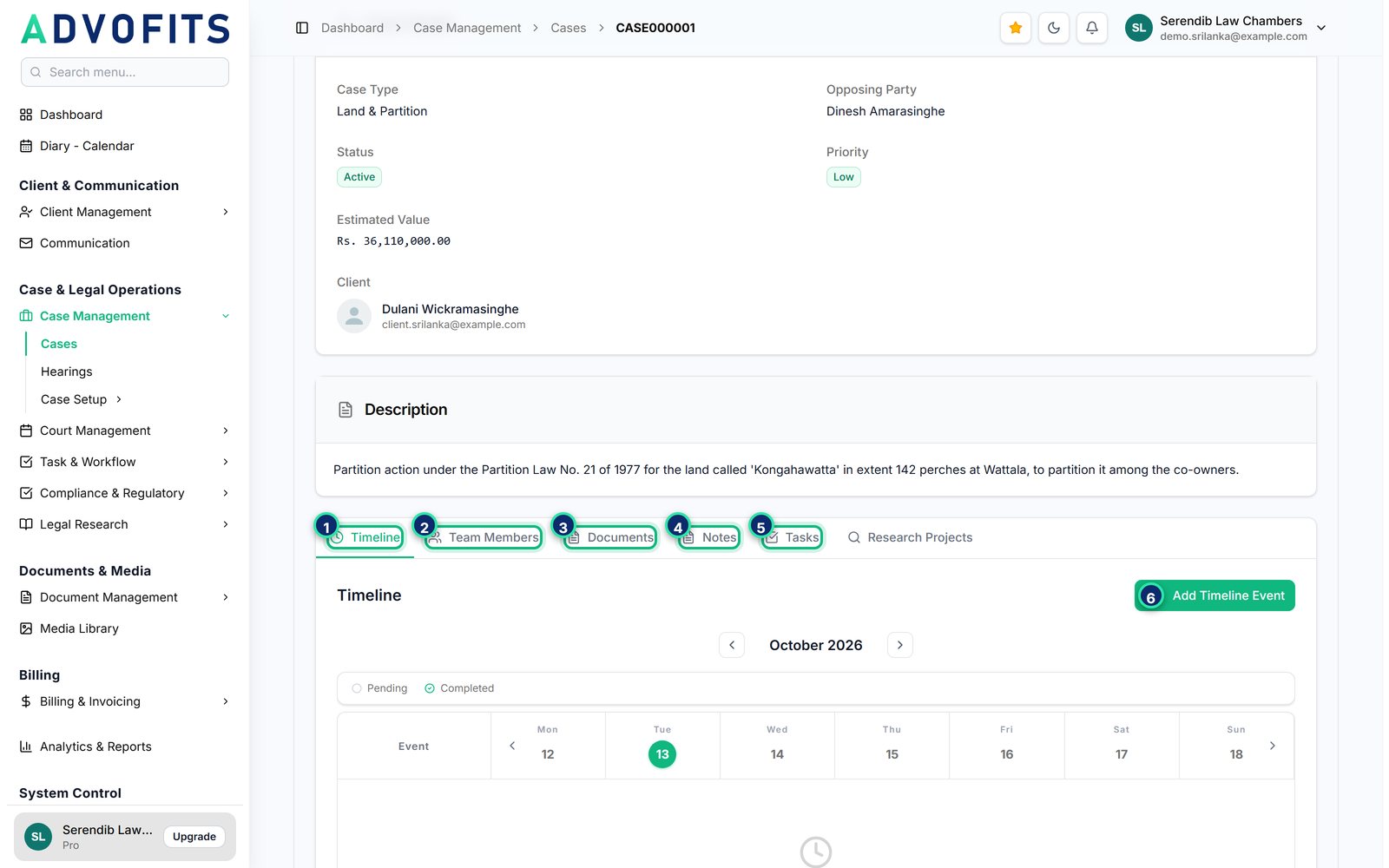
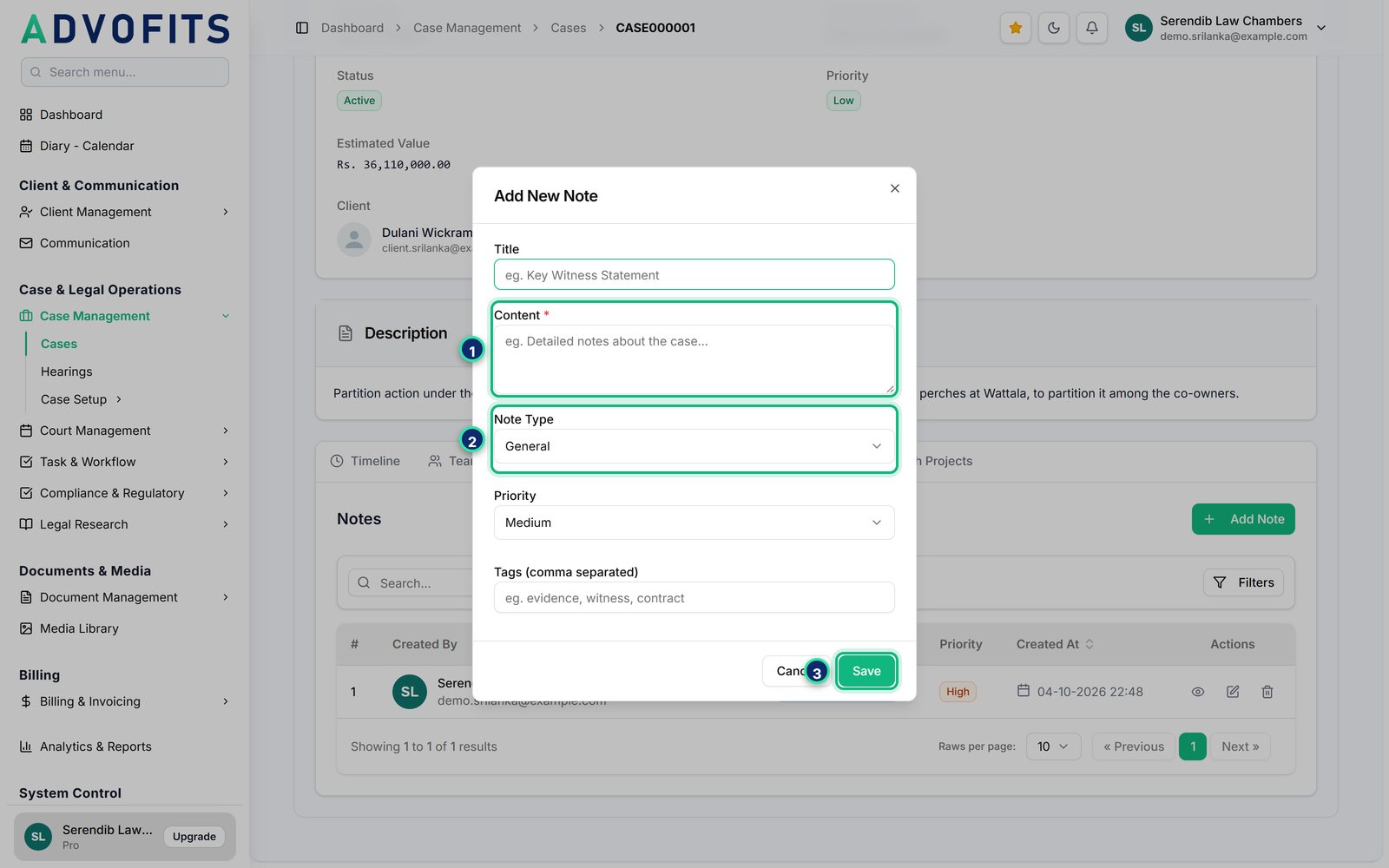
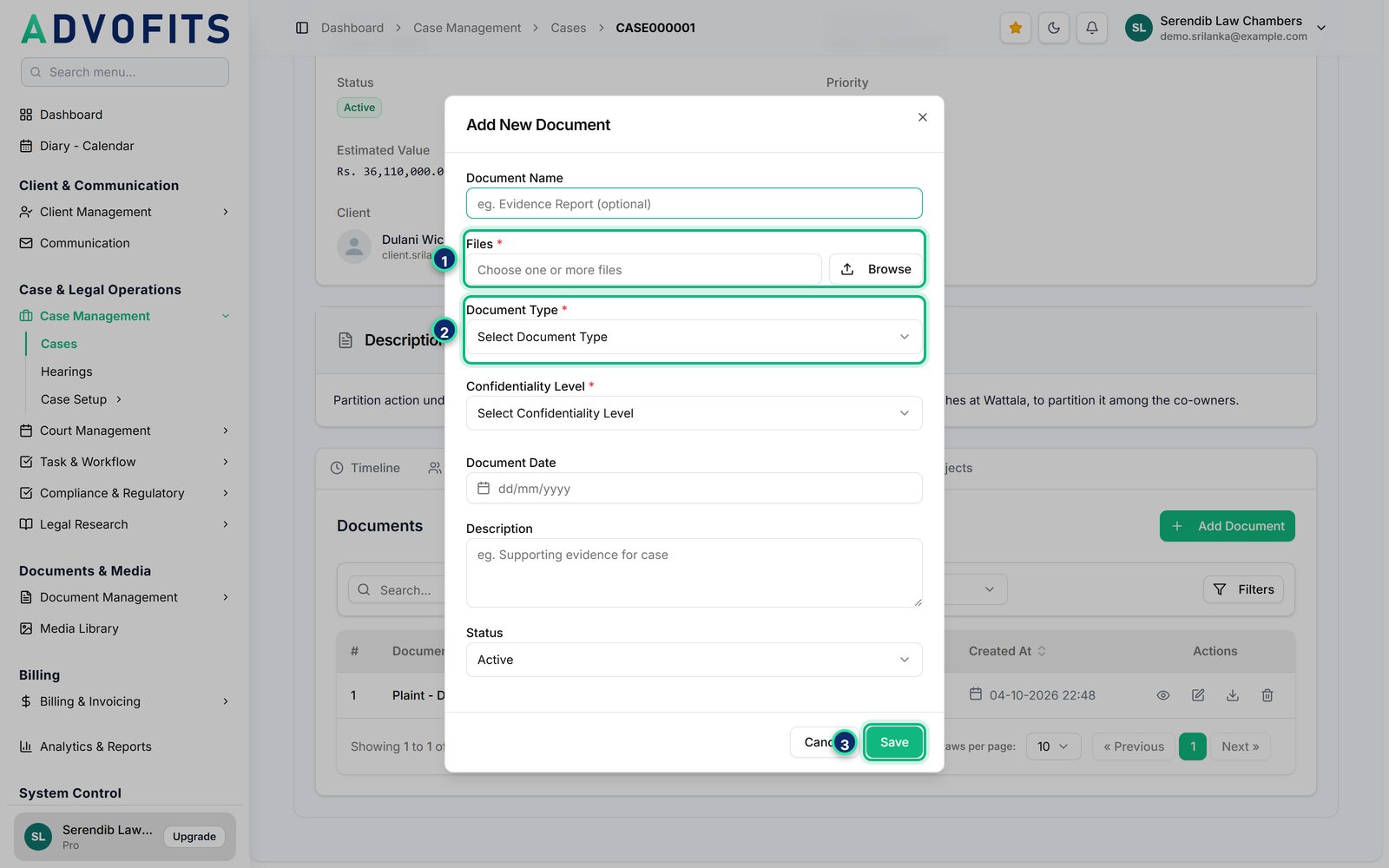
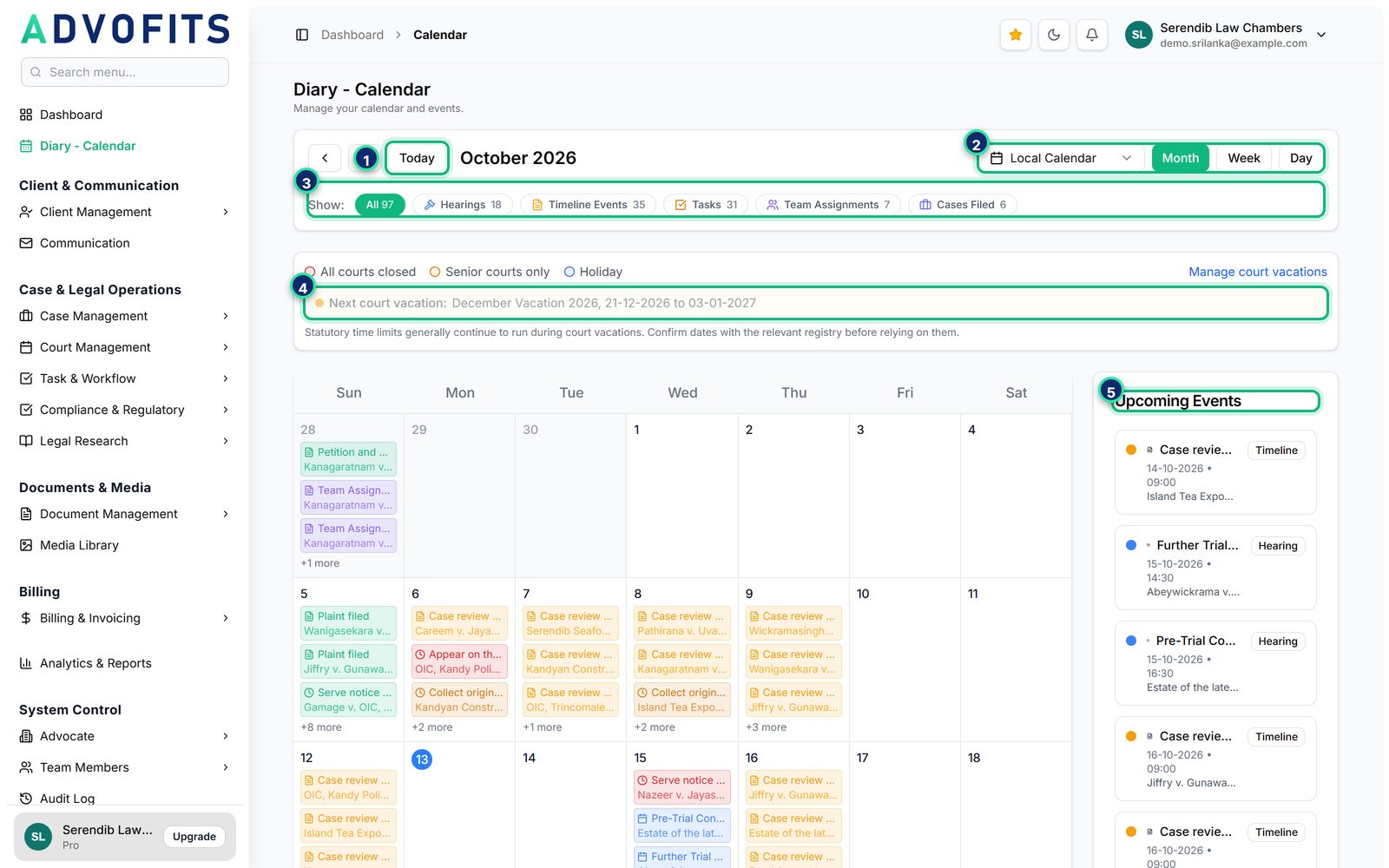
1On every screenshot, a numbered marker points to the button or field described in the step with the same number below it.
01
Getting started
1.1
Sign in
Open advofits.lk in any browser, on a computer, tablet or phone, and sign in with the email and password of your firm account.
1Type the email address of your firm account.
2Type your password. Use Forgot password? if you need a new one.
3Click Login. If you have turned on two-factor sign-in, type the 6-digit code from your authenticator app as well.
1.2
Find your way around
After signing in you land on the Dashboard, a summary of active cases, clients, revenue and what is due. Everything in this guide starts from the menu on the left.
1Diary - Calendar: every hearing, task and case event by month, week or day.
2Case Management: opens Cases, Hearings and Case Setup.
3Quick Links: the star keeps the pages you use most one click away.
4Notifications: the bell shows new hearings, tasks and messages for your firm.
02
Cases
2.1
Your case list
Case Management → Cases lists every matter in your firm, with its client, team, status, priority and filing date.
1Add Case starts a new matter (see the next page).
2Search by case title or number.
3Filter by case type, case status, active status or court.
4Show only low, medium or high priority cases.
5The eye opens the case page with everything about the matter.
6The circular arrows change the case status, for example from Filed to Pre-Trial.
TipThe lock icon next to them makes a case inactive, for a matter that is closed but must be kept. Nothing is deleted.
2.2
Add a new case
A new case is entered in four short steps. Fields marked * are required; you can come back and fill in the rest later with Edit.
1The four steps: Case Info, Classification, Court Details and Schedule. Use Previous to go back.
2Case Title, for example Perera v. Fernando (Declaration of Title).
3Client. Not on the list yet? Click here to add Client opens a short form without leaving the page.
4Next moves on to Classification.
2.3
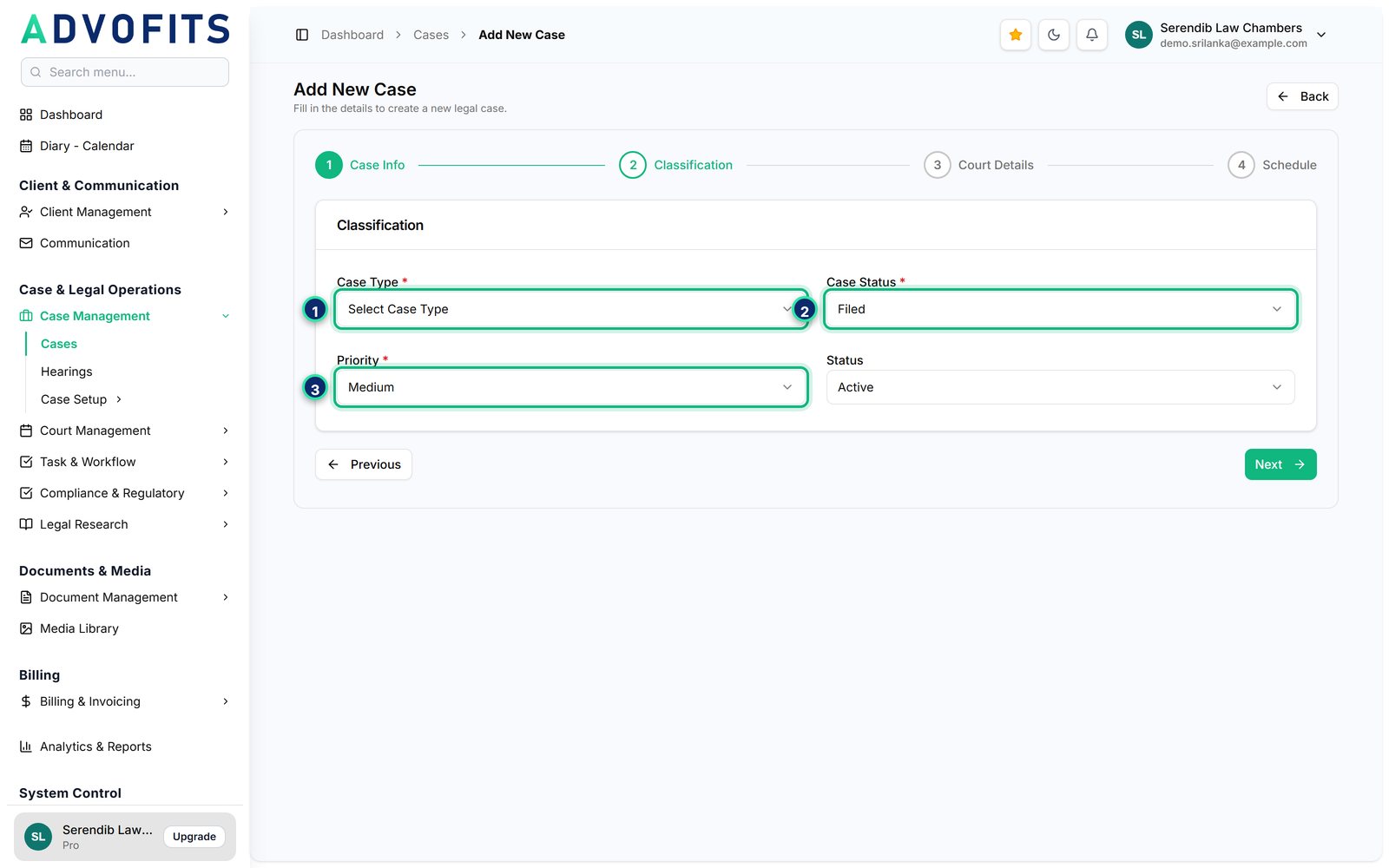
Step 2: Classification
Say what kind of matter this is and where it stands.
1Case Type, for example Land & Partition or Money Recovery.
2Case Status. It starts at your default status (such as Filed); change it as the case moves on.
3Priority: Low, Medium or High. It decides which tab the case shows under in the list.
2.4
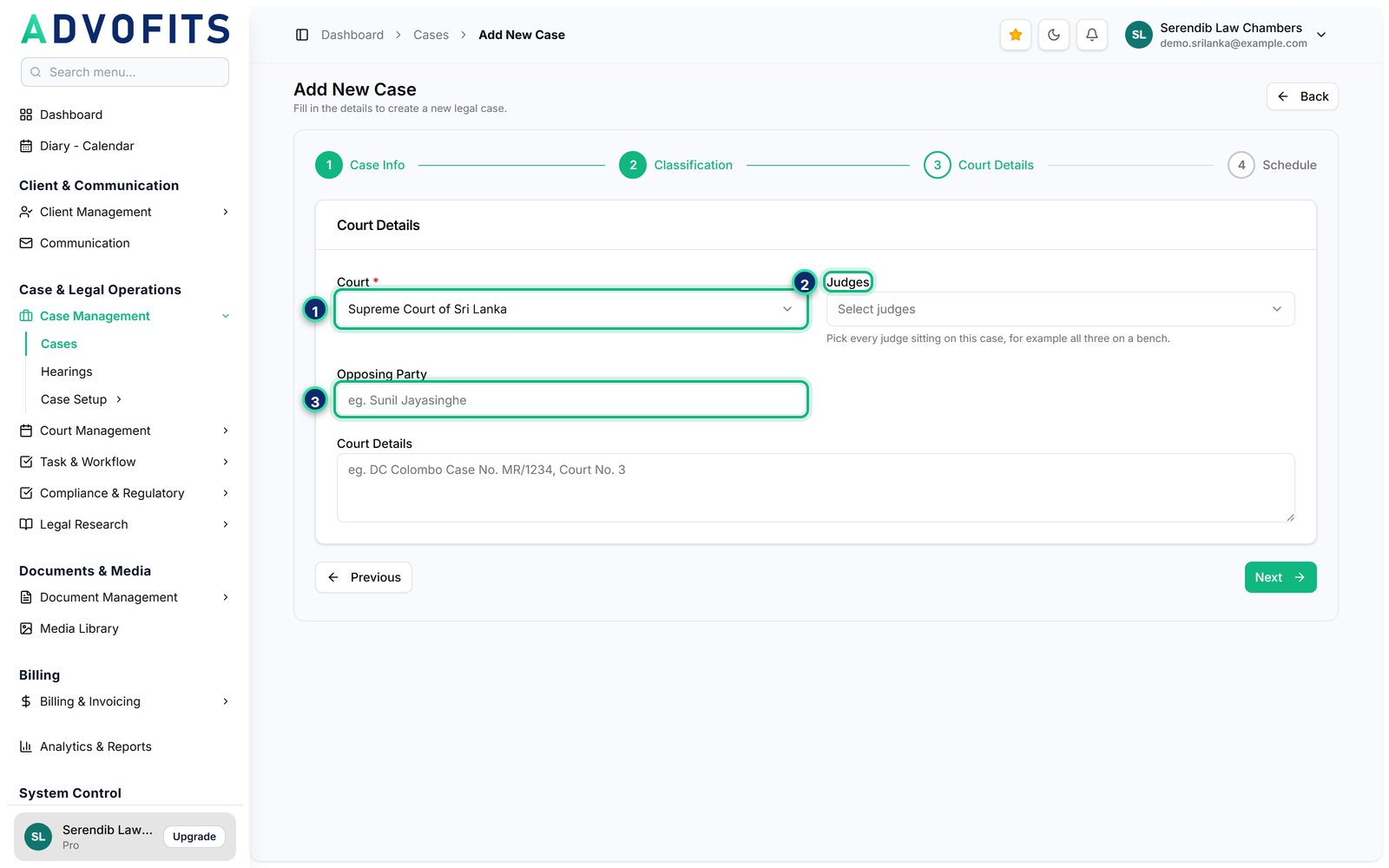
Step 3: Court Details
Choose the court the case is in. The hearings you add later take this court automatically.
1Court, for example District Court of Mount Lavinia.
2Judges: only judges of the chosen court are offered. Pick more than one for a bench.
3Opposing Party, and below it Court Details for the case number and court room, for example DC Colombo Case No. MR/1234, Court No. 3.
TipA court or judge missing from the list is added once under Court Management → Courts or Judges.
2.5
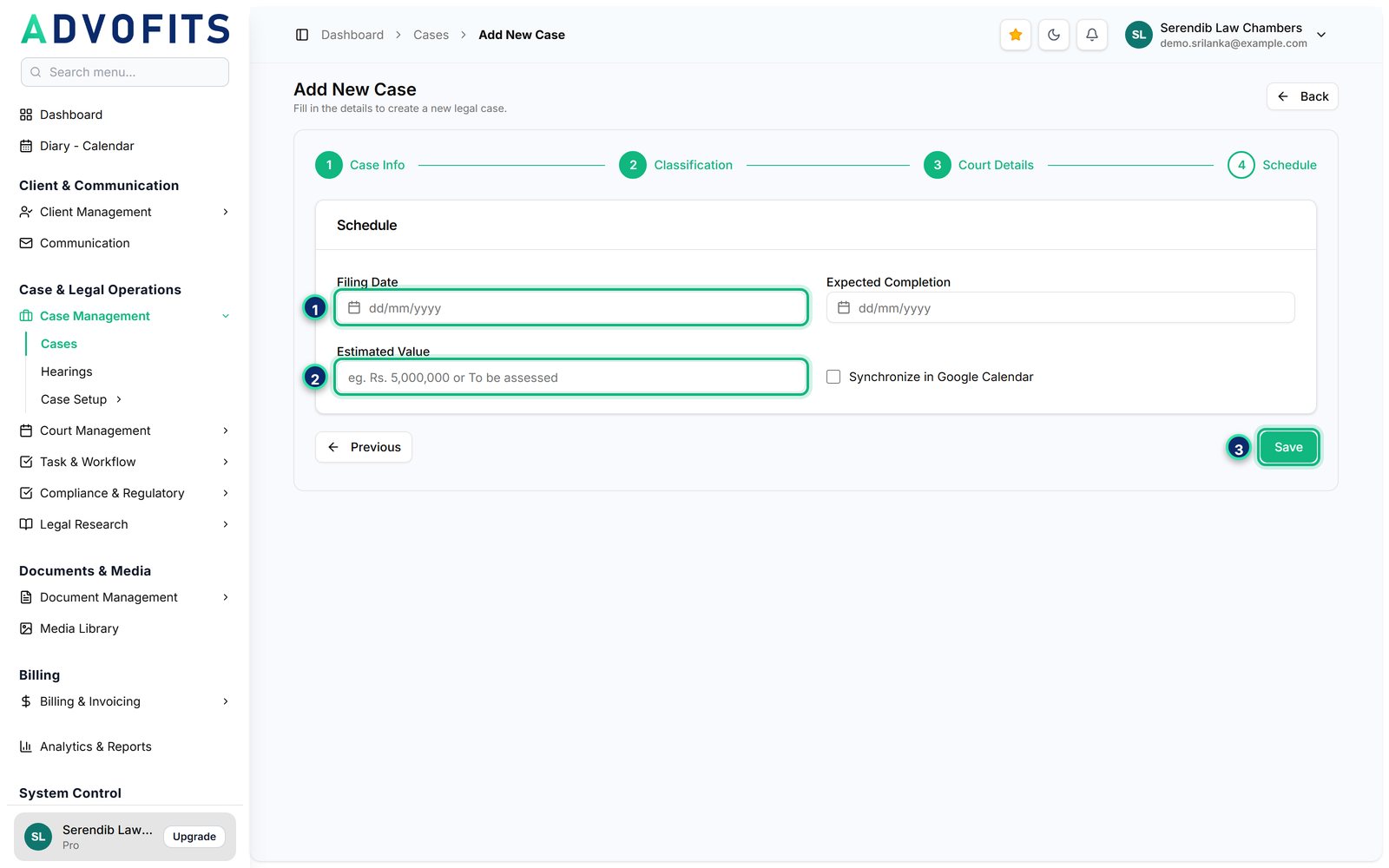
Step 4: Schedule
Finish with the dates and the value of the claim, then save.
1Filing Date, and Expected Completion if you have an estimate. The filing date appears in the Diary.
2Estimated Value: type it as you would say it, for example Rs. 5,000,000 or To be assessed.
3Save creates the case and opens your case list.
2.6
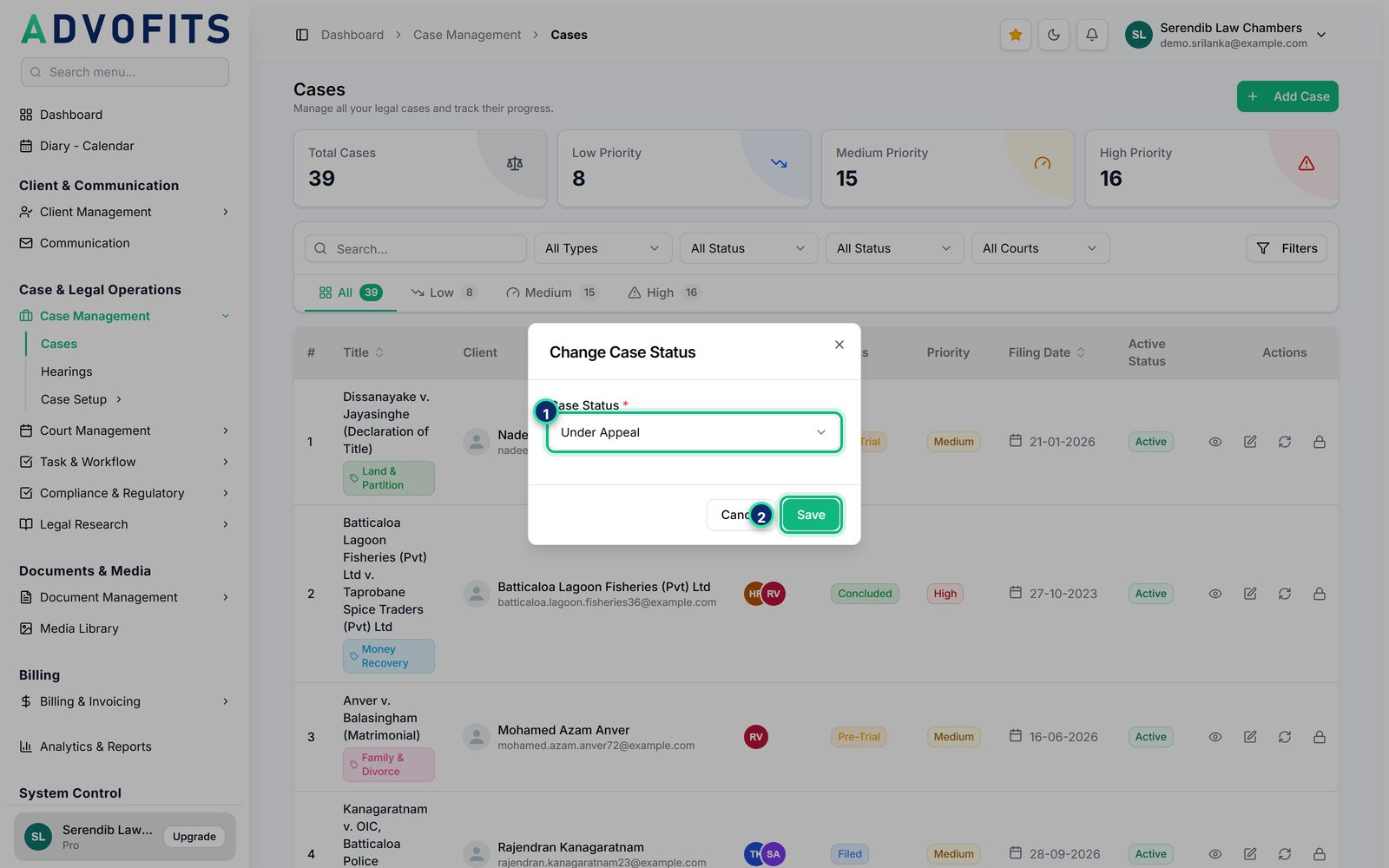
Change a case status
As a matter moves from filing to trial to judgment, keep its status up to date so the list and the filters stay accurate.
1In the case list, click the circular arrows on the case, then choose the new Case Status.
2Save. The new status shows in the list straight away.
TipThe statuses you can choose (Filed, Pre-Trial, Trial, Concluded and so on) are your own: add or rename them under Case Management → Case Setup → Case Status.
03
The case page
3.1
Everything about one matter
Open a case with the eye icon in the list. The top of the page shows who the client is, the key dates, the court and the case details.
1Client, filing date and expected completion at a glance.
2Court Details: the court, its address and phone, and the judges of this court.
3Back returns to the case list.
3.2
Work on the case
Further down, the tabs hold the work on the matter. Each tab has its own add button on the right.
1Timeline: events such as plaint filed, summons served or answer due, shown by date.
2Team Members: the lawyers and clerks working on the case.
3Documents: pleadings, affidavits, evidence and correspondence.
4Notes: your notes on the case.
5Tasks: work to be done on the case, with due dates.
6Add Timeline Event records a new event. Timeline events also appear in the Diary.
3.3
Add a note
On the Notes tab, click Add Note. Only the content is required.
1Content: the note itself. A title is optional.
2Note Type is General unless you choose Meeting, Research or Strategy.
3Save. The note is listed on the tab with who wrote it and when.
3.4
Upload documents
On the Documents tab, click Add Document to upload files from your computer.
1Files: Browse and choose one or several files at once.
2Document Type, for example Plaint or Affidavit, and the Confidentiality Level.
3Save. Each file can be viewed or downloaded from the list.
3.5
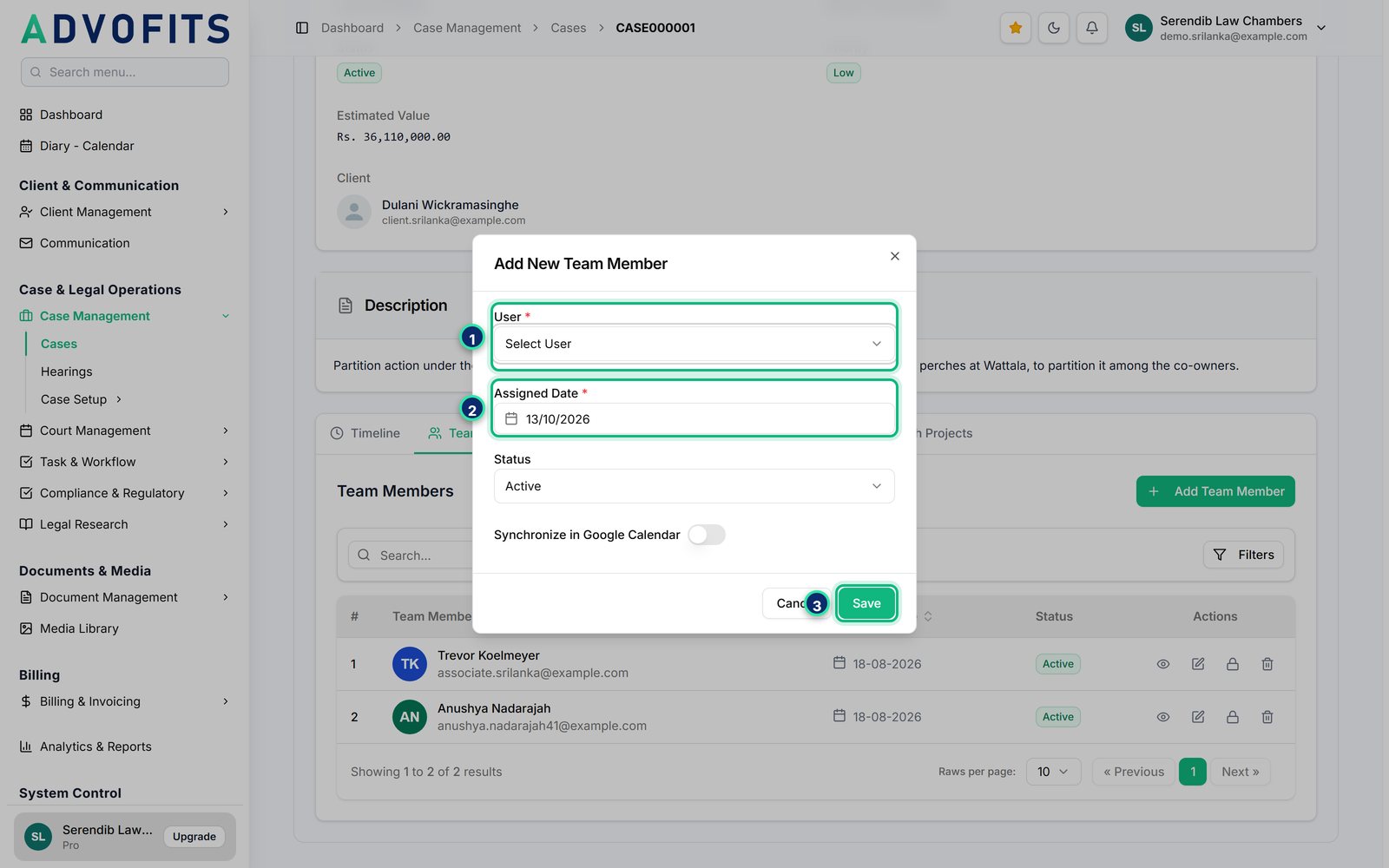
Assign your team
On the Team Members tab, click Add Team Member. A team member sees the case, its hearings and its tasks when they sign in.
1User: choose the lawyer or clerk.
2Assigned Date: the day they start on the case.
3Save.
TipNew staff accounts are added under System Control → Team Members.
04
Hearings
4.1
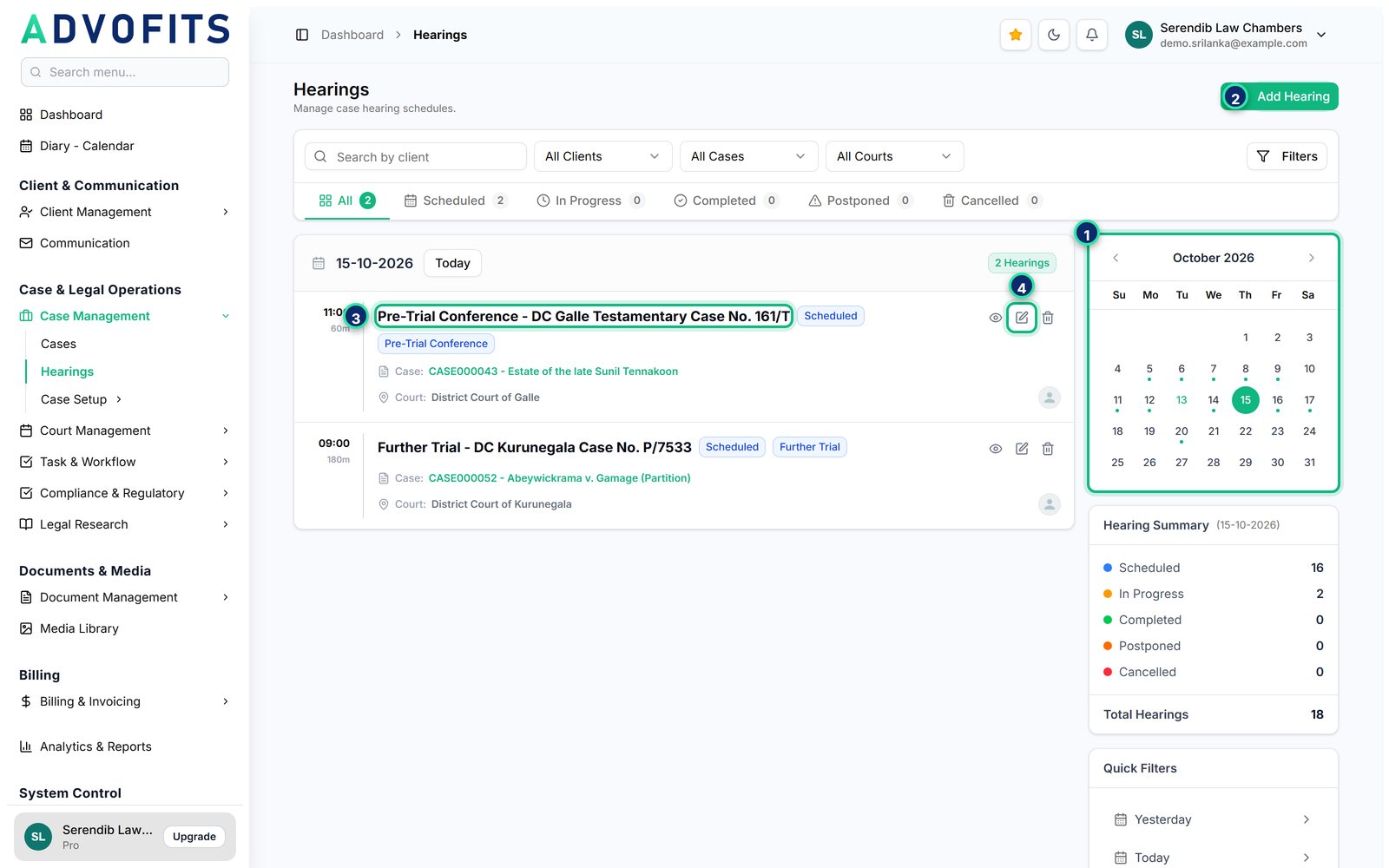
The hearing list
Case Management → Hearings shows the hearings of one day, with the time, the court and the case of each.
1The month calendar: a dot under a date means there are hearings that day. Click a date to see them.
2Add Hearing (see the next page).
3Each hearing shows its time, title, status, case and court.
4The pencil edits a hearing, for example to record the outcome.
TipQuick Filters on the right jump to Yesterday, Today or Tomorrow.
4.2
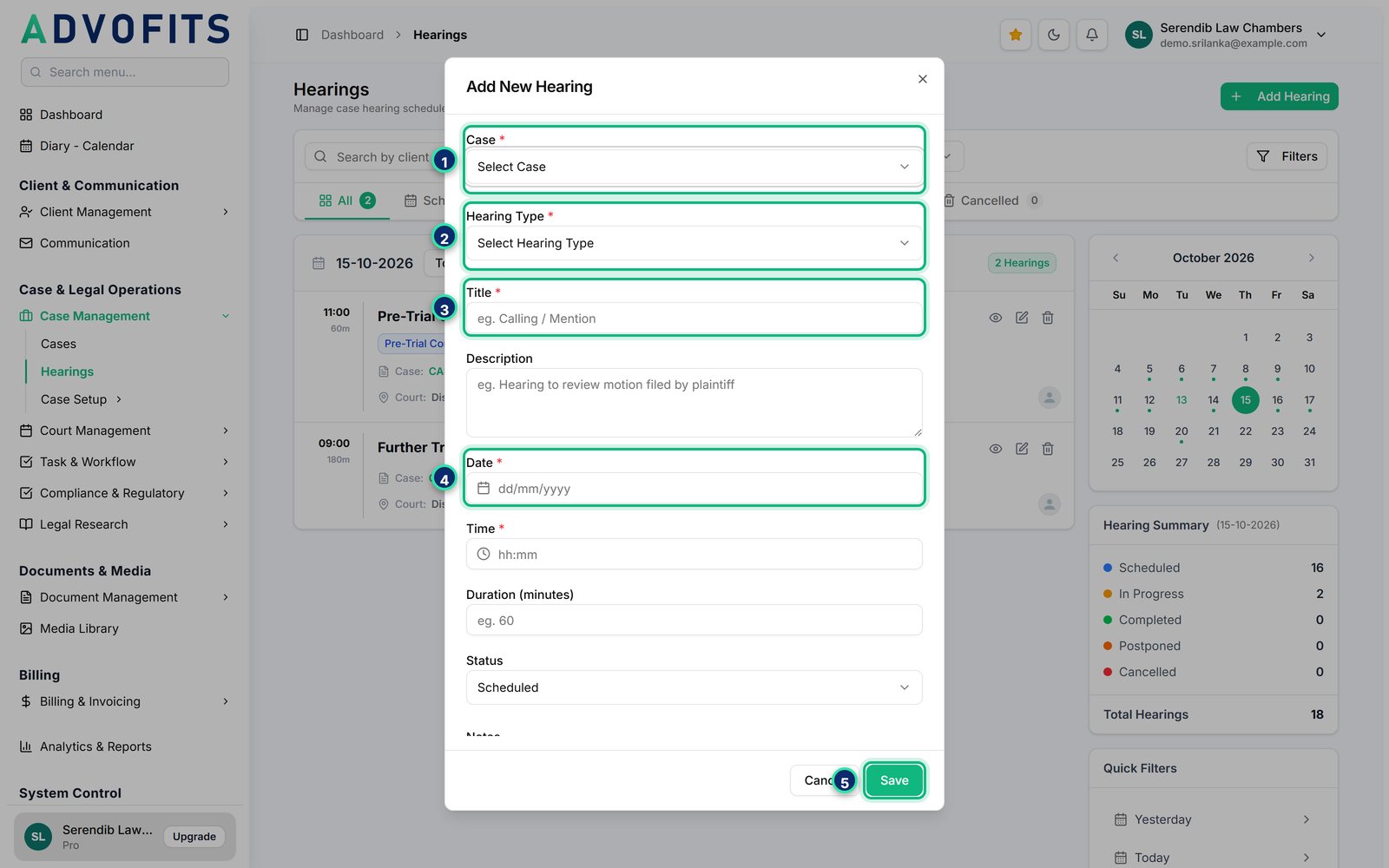
Add a hearing
Click Add Hearing. The court is taken from the case, so you never type it again.
1Case: the matter the hearing is for.
2Hearing Type, for example Calling / Mention, Trial or Judgment / Order.
3Title, for example Calling / Mention.
4Date, then Time and Duration below it.
5Save. The hearing appears in the list and in the Diary.
4.3
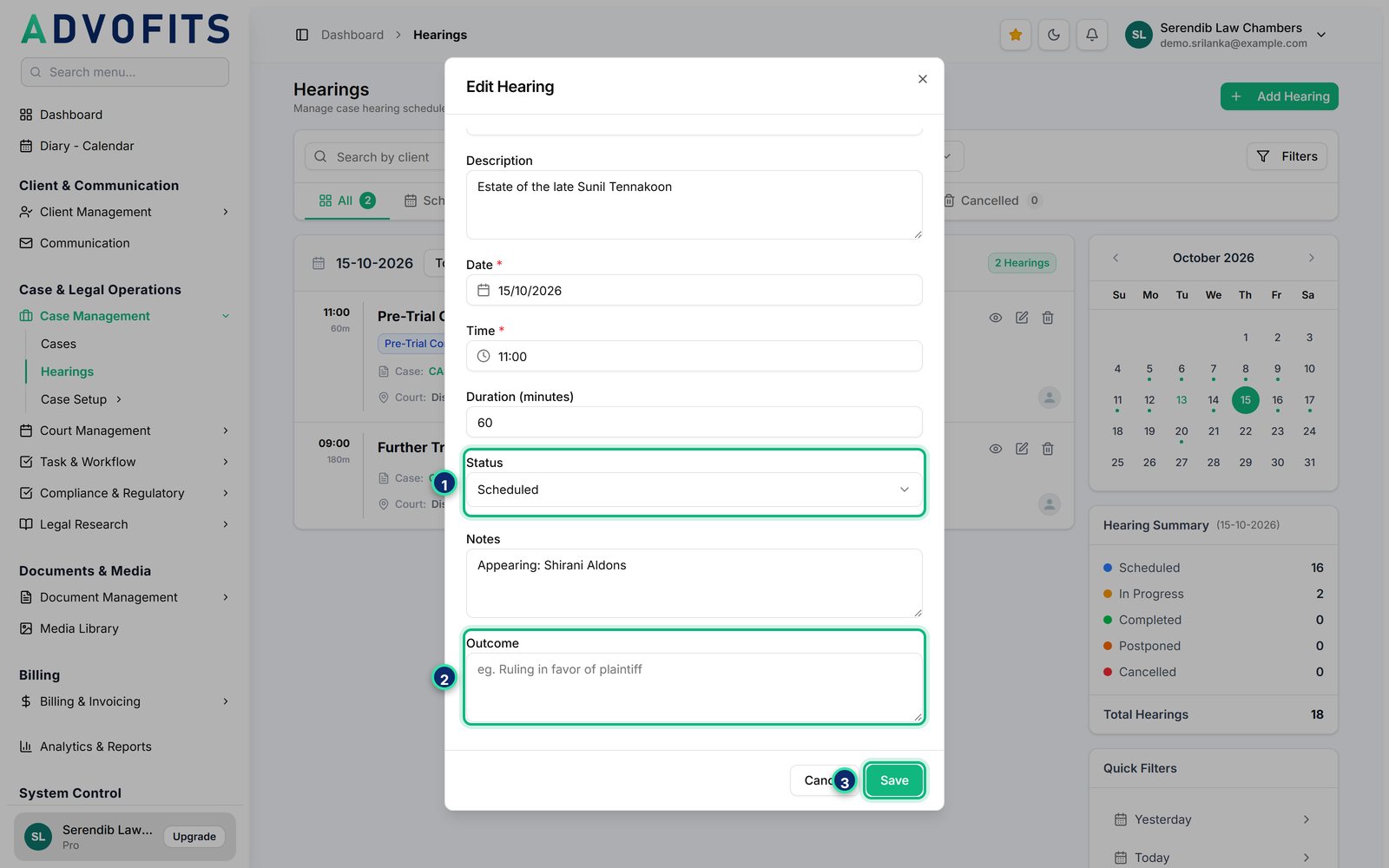
After the hearing
Record what happened, so the history of the case stays complete. Open the hearing with the pencil.
1Status: Completed, Postponed or Cancelled.
2Outcome: what the court did, for example Postponed for further trial or Judgment delivered for the plaintiff.
3Save. When the court gives a next date, add it as a new hearing.
05
The Diary
5.1
Your court diary
Diary - Calendar brings together hearings, case events, tasks, team assignments and filing dates, so you can see your week at a glance.
1Today, and the arrows beside it, move between months, weeks or days.
2Choose Month, Week or Day. Local Calendar shows AdvoFits entries; switch to Google Calendar here if your firm has connected it.
3Show only what you need: Hearings, Timeline Events, Tasks, Team Assignments or Cases Filed.
4Court vacations and holidays are marked, with the next vacation shown above the calendar.
5Upcoming Events lists what is coming up in the next seven days.
TipStatutory time limits generally continue to run during court vacations. Confirm dates with the relevant registry before relying on them.
Need a hand?
Raise a support ticket from Support Tickets in the AdvoFits menu, or contact us.